

Download iProcrastinate – Advanced To‑Do List & Calendar Organizer for Mac
Overview
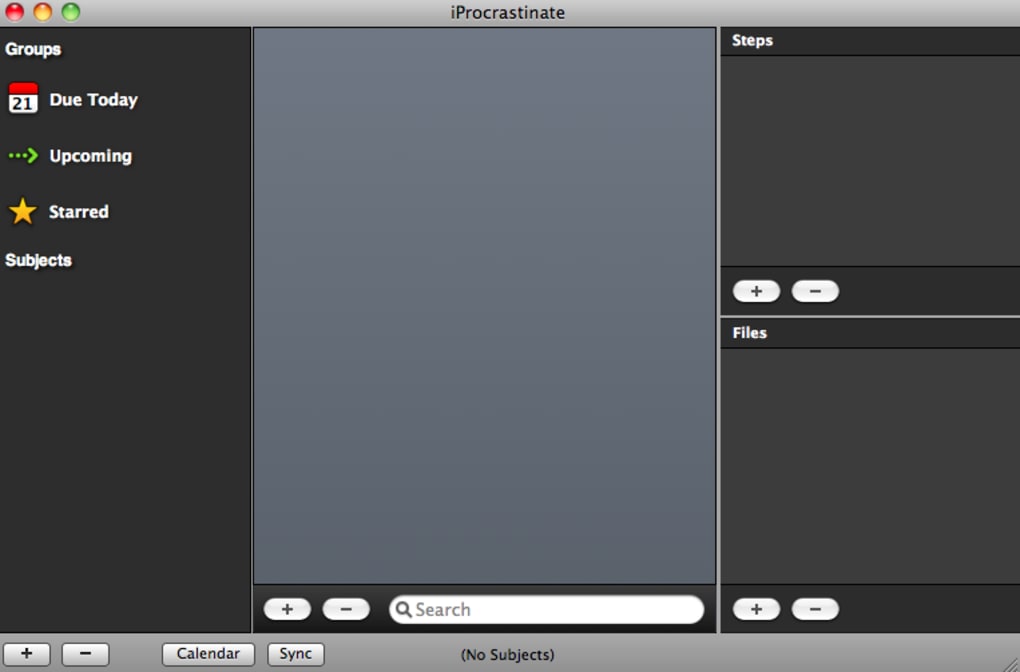
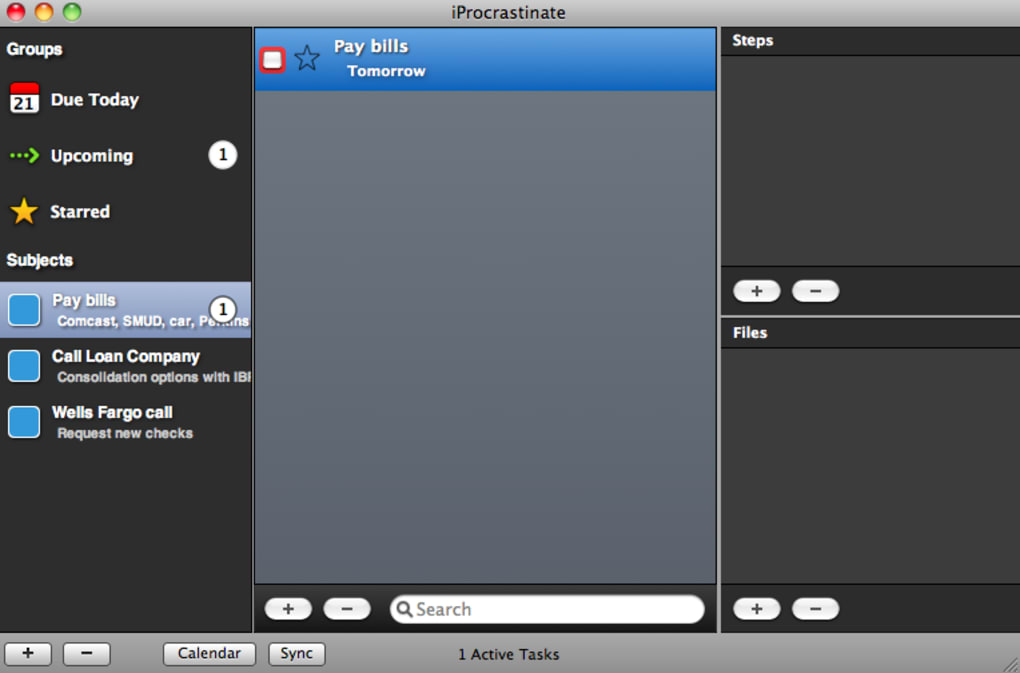
iProcrastinate is a sleek, desktop‑only productivity app built specifically for macOS users who crave a visually appealing yet powerful way to manage tasks, assignments, and projects. At its core, the software functions as a super‑charged to‑do list, allowing you to assign colors, due dates, and custom tags to each entry. The clean interface is divided into two primary screens: a list view that orders tasks by deadline and a calendar view that maps upcoming responsibilities across weeks and months.
What truly sets iProcrastinate apart is its seamless synchronization with the companion iPhone app and cloud storage through Dropbox, ensuring that your task data is always up‑to‑date no matter which device you’re on. While the learning curve can feel a little steep at first—especially for users new to color‑coded task management—the intuitive drag‑and‑drop layout and helpful tooltip hints make the onboarding process quick and painless. Whether you’re a college student juggling multiple coursework deadlines, a freelancer handling client deliverables, or a busy professional trying to keep personal errands in check, iProcrastinate offers a polished, distraction‑free environment to keep your life organized.
Key Features that Make iProcrastinate Stand Out
- Color‑Coded Task Categorization: Assign any of the preset or custom colors to tasks, making it easy to visually separate work, personal, and urgent items at a glance.
- Dual‑Screen Interface: Switch effortlessly between the List view (sorted by due date) and the Calendar view (month‑by‑month overview) without losing context.
- Intelligent Due‑Date Sorting: Tasks automatically reorder themselves based on the nearest deadline, helping you prioritize without manual shuffling.
- iPhone Sync & Dropbox Integration: Real‑time synchronization across macOS and iOS devices, plus cloud backup via Dropbox for peace of mind.
- Rich Task Details: Add notes, subtasks, attachments, and custom tags to each entry, turning a simple checklist into a comprehensive project brief.
- Responsive Design: Optimized for Retina displays, the UI remains crisp and easy on the eyes whether you’re using a 13‑inch MacBook Air or a 27‑inch iMac.
- Keyboard Shortcuts & Drag‑Drop Editing: Speed up workflow with shortcuts for creating, completing, or moving tasks, and rearrange items by dragging them directly in the list.
- Export & Import Options: Export your task list to CSV or import existing to‑do files, making migration from other tools hassle‑free.
Installation & Usage Instructions
Getting iProcrastinate up and running on your Mac is a straightforward three‑step process. First, click the “Download” button below the article, which redirects you to the Mac App Store. Once on the store page, tap “Get” and then “Install.” The App Store will handle the download, verification, and placement of the application in your /Applications folder. After installation, launch iProcrastinate from Launchpad or your Applications directory. On first launch, the app will request permission to access your Dropbox account if you wish to enable cloud sync; simply sign in with your Dropbox credentials and grant the requested permissions.
When the main window opens, you’ll be greeted by the List view. To add a new task, click the “+” button in the top‑right corner or press ⌘+N. A modal dialog appears where you can type the task name, select a due date from a calendar picker, choose a color label, and add optional notes or attachments.
After saving, the task appears in the list, automatically positioned by its deadline. Switching to Calendar view is as simple as clicking the calendar icon on the toolbar; here you can drag tasks between dates to reschedule them. To sync with your iPhone, download the companion iProcrastinate app from the iOS App Store, sign in with the same iCloud or Dropbox account, and watch your tasks appear instantly.
The app also supports quick completion via the spacebar or by checking the box next to each item. For power users, explore the Preferences pane (⌘+,) to customize notification settings, default colors, and backup intervals.
Compatibility, Pros & Cons
Supported Platforms: iProcrastinate is built exclusively for macOS 10.15 (Catalina) and later, taking advantage of native Apple frameworks for smooth performance. The companion iPhone app runs on iOS 13 and newer, ensuring broad coverage across most modern iPhone models. Because the software relies on Dropbox for cross‑device syncing, a free Dropbox account suffices, though premium plans offer more storage for attached files.
Pros
- Elegant, retina‑optimized UI that reduces visual clutter.
- Powerful color‑coding system for instant visual prioritization.
- Real‑time sync between Mac and iPhone, plus Dropbox backup.
- Automatic due‑date sorting eliminates manual reordering.
- Rich task details (notes, attachments, subtasks) keep projects organized.
- Keyboard shortcuts accelerate daily workflow.
- Export to CSV makes data portable and easy to share.
Cons
- Mac‑only; Windows and Linux users must look for alternatives.
- Initial learning curve for advanced features like color tags and calendar drag‑drop.
- Reliance on Dropbox may be a concern for users preferring other cloud services.
- No built‑in Pomodoro timer or focus‑mode, which some productivity apps include.
- Free version lacks advanced reporting and analytics.
Frequently Asked Questions
Is iProcrastinate free or paid?
iProcrastinate is a paid app on the Mac App Store with a one‑time purchase price of $9.99. The iPhone companion is free, but you need the macOS license to sync tasks across devices.
Can I use iProcrastinate without Dropbox?
Yes. The app works fully offline on your Mac, and you can manually export/import CSV files to move data between computers. Dropbox is only required for automatic cloud sync.
Does iProcrastinate support recurring tasks?
Recurring tasks are not a native feature yet, but you can duplicate a task manually and set the next due date. Future updates are planned to include true recurrence.
How secure is my data when syncing with Dropbox?
All data transferred between iProcrastinate and Dropbox is encrypted via HTTPS. Dropbox itself stores files encrypted at rest, offering industry‑standard security for your task lists and attachments.
Can I customize the color palette?
Yes. In Preferences you can add custom colors, rename existing labels, and even import palettes from other design tools, giving you full control over visual organization.
Final Thoughts & Call to Action
iProcrastinate delivers a refined, color‑driven approach to task management that feels both modern and purposeful. Its dual‑screen layout—combining a deadline‑sorted list with a month‑view calendar—covers the entire planning spectrum, from daily to long‑term. While the Mac‑only restriction may limit some users, those entrenched in the Apple ecosystem will appreciate the flawless sync with iPhone and the added safety net of Dropbox backups.
The learning curve is modest; after a short period of experimentation, most users find the interface intuitive and the productivity gains evident. If you’re searching for a free‑form, visually oriented to‑do app that goes beyond simple checklists, iProcrastinate is a compelling choice. Click the button below to download the app from the Mac App Store, install it on your Mac, and start turning chaotic task piles into organized, color‑coded success stories.







